
How it works, step by step
Each guide has a one-minute video and the same steps in pictures. Video not playing? Some internet filters block videos; the pictures below show everything.
Request a proposal with your plans
This video could not play here (it may be blocked by your internet filter). Follow the pictures below instead.
Video · 0:58 · no sound, captions on screen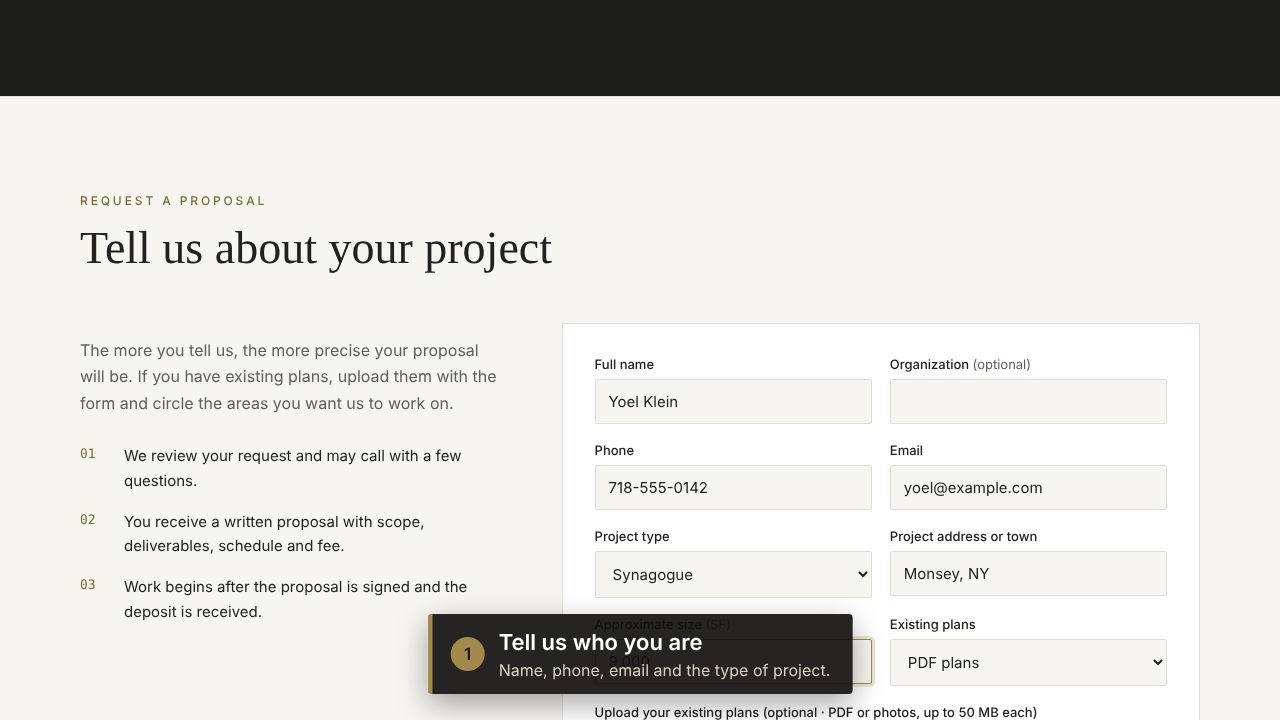 1
1Tell us who you are
Fill in your name, phone, email, the type of project and the address. It takes a minute.
 2
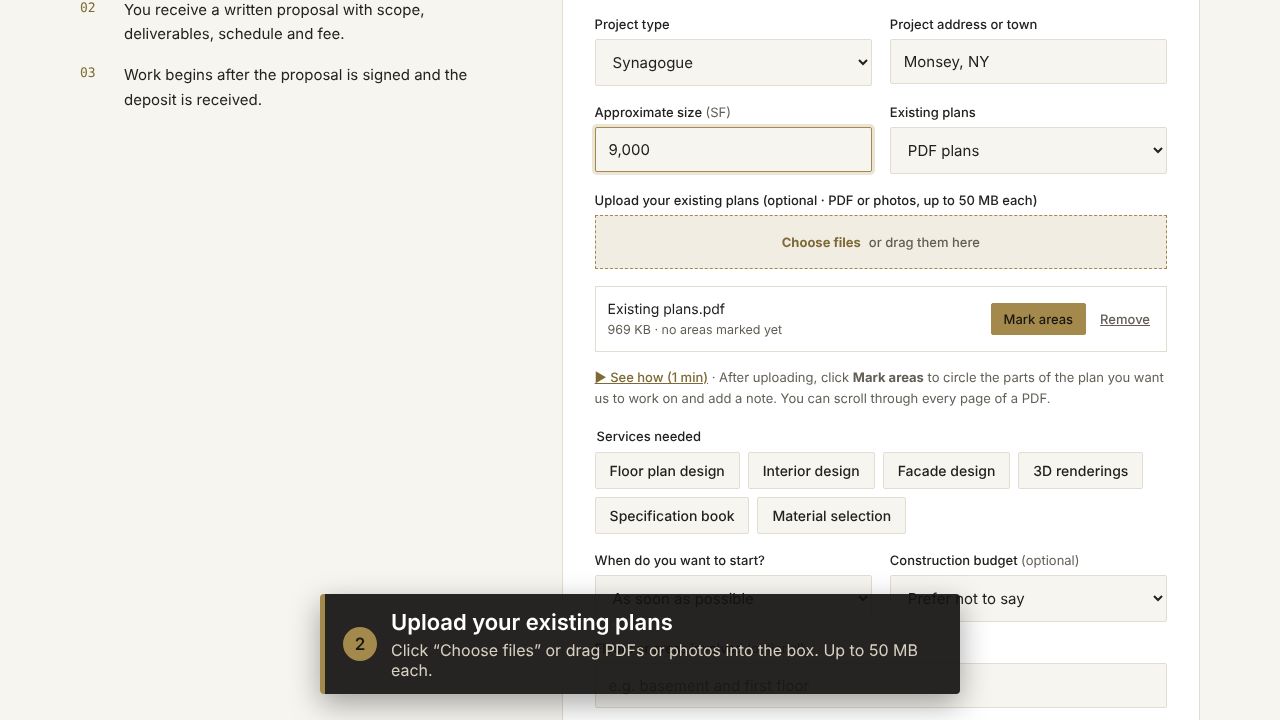
2Upload your existing plans
Click “Choose files” or drag your PDFs or photos into the box. Up to 8 files, 50 MB each. No plans? Skip this.
 3
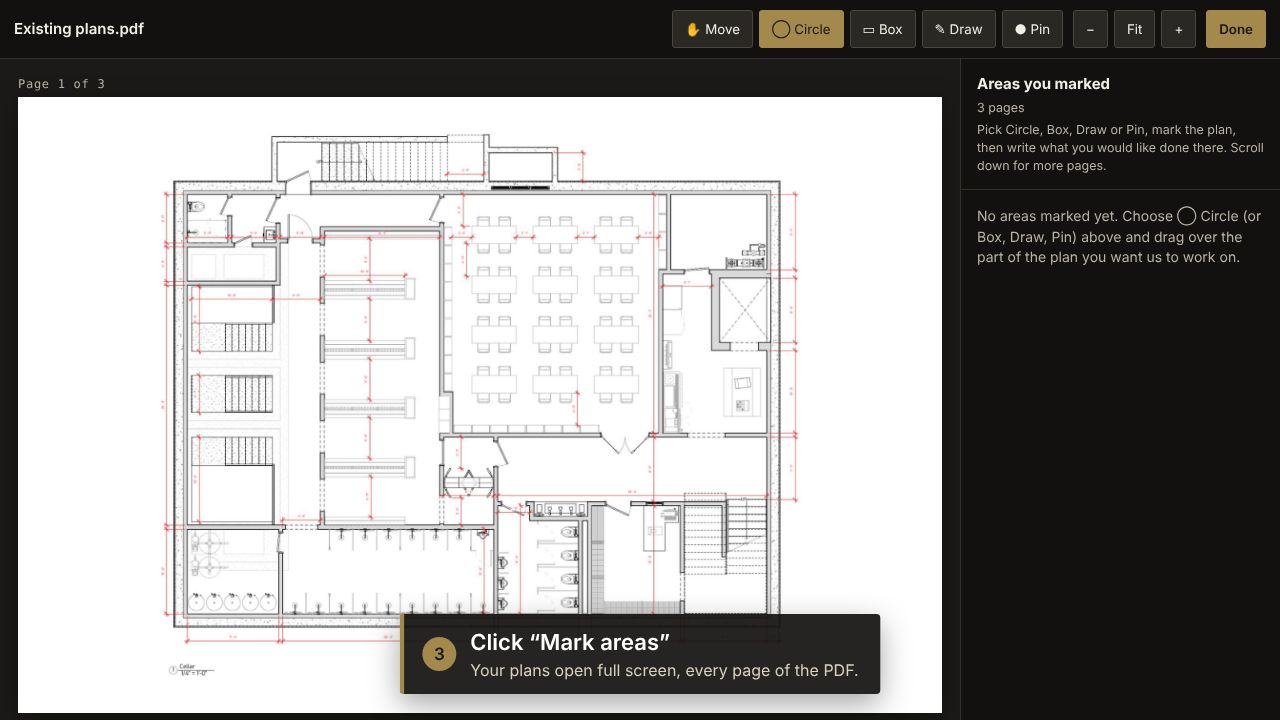
3Click “Mark areas”
Your plans open full screen. Every page of the PDF is there; scroll down to see them all.
 4
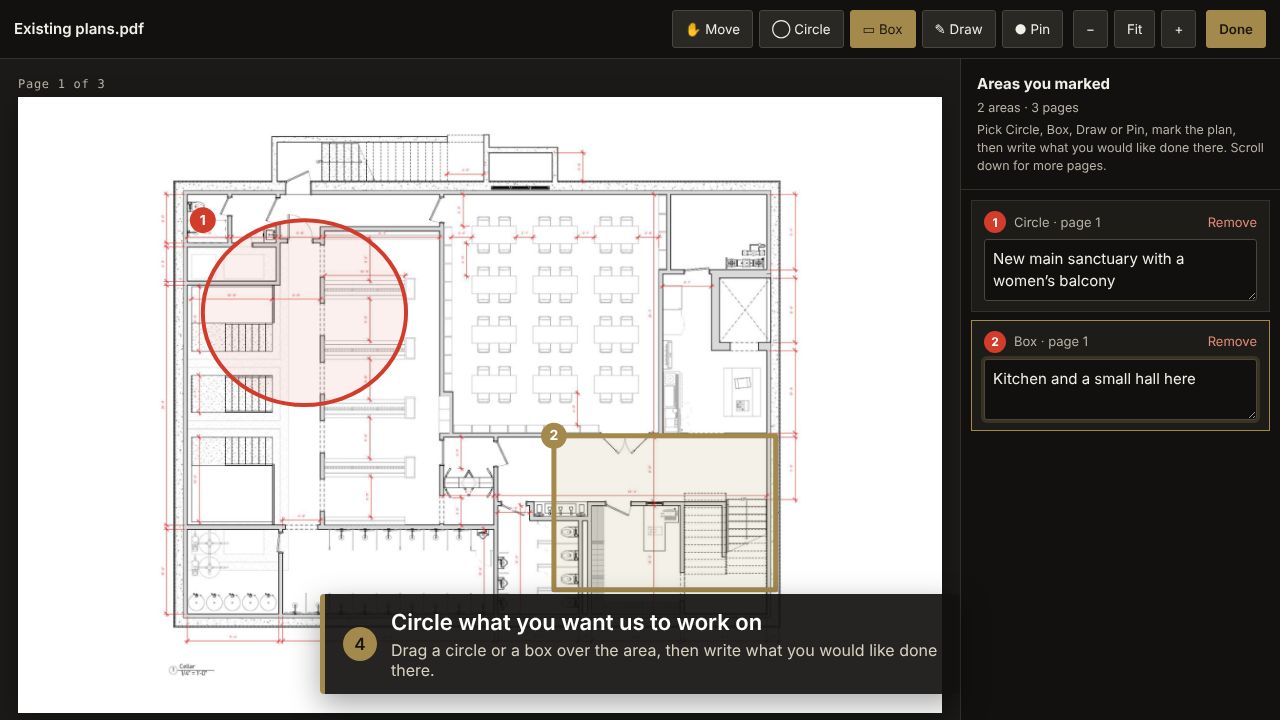
4Circle what you want us to work on
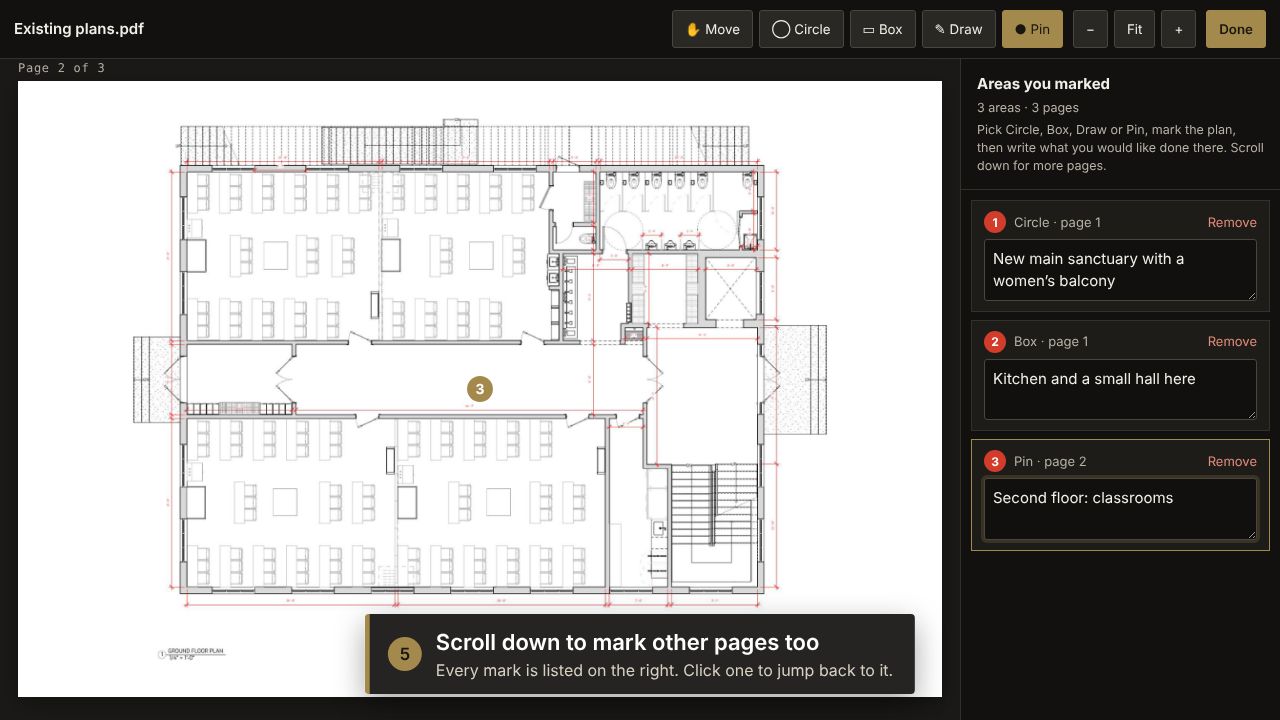
Choose ◯ Circle or ▭ Box and drag over the area. Then write what you would like done there, e.g. “new kitchen here”.
 5
5Mark other pages too
Scroll to the next page and mark it the same way. Every area is listed on the right; click one to jump back to it. Click Done when you finish.
 6
6Describe the project, or just talk
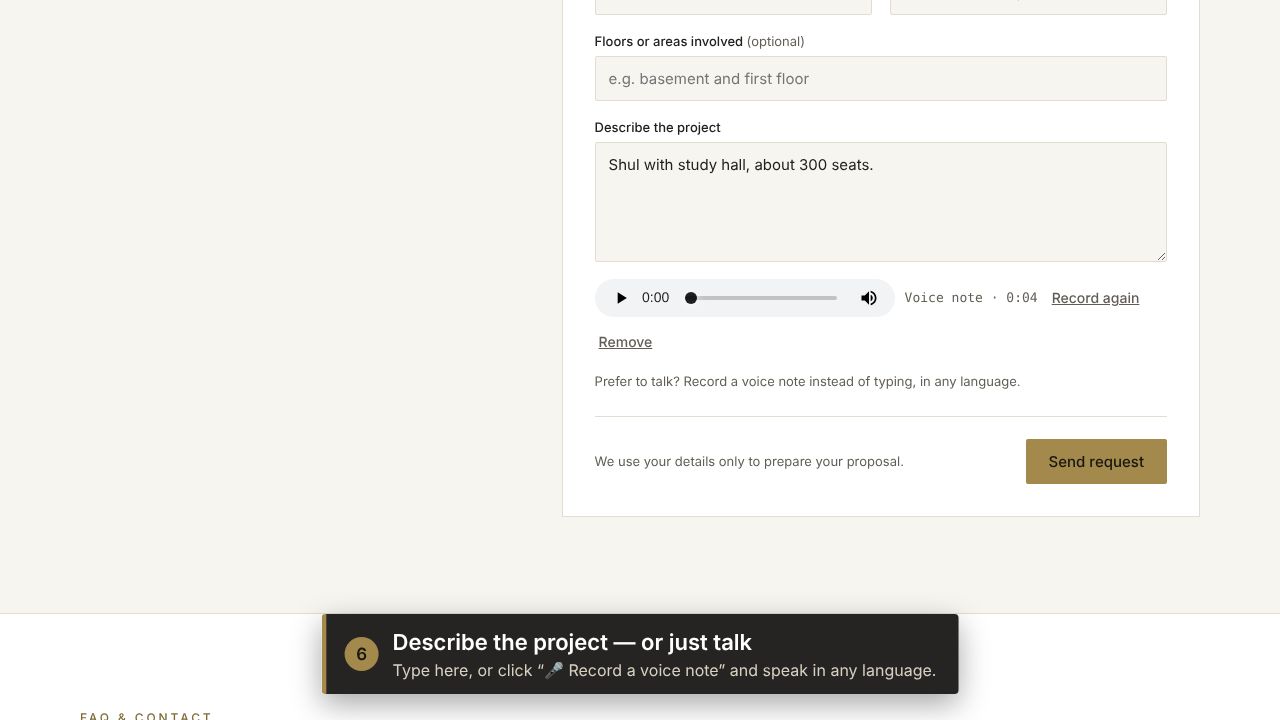
Type a short description, or click “🎤 Record a voice note” and speak in any language. You can listen back before sending.
 7
7Send your request
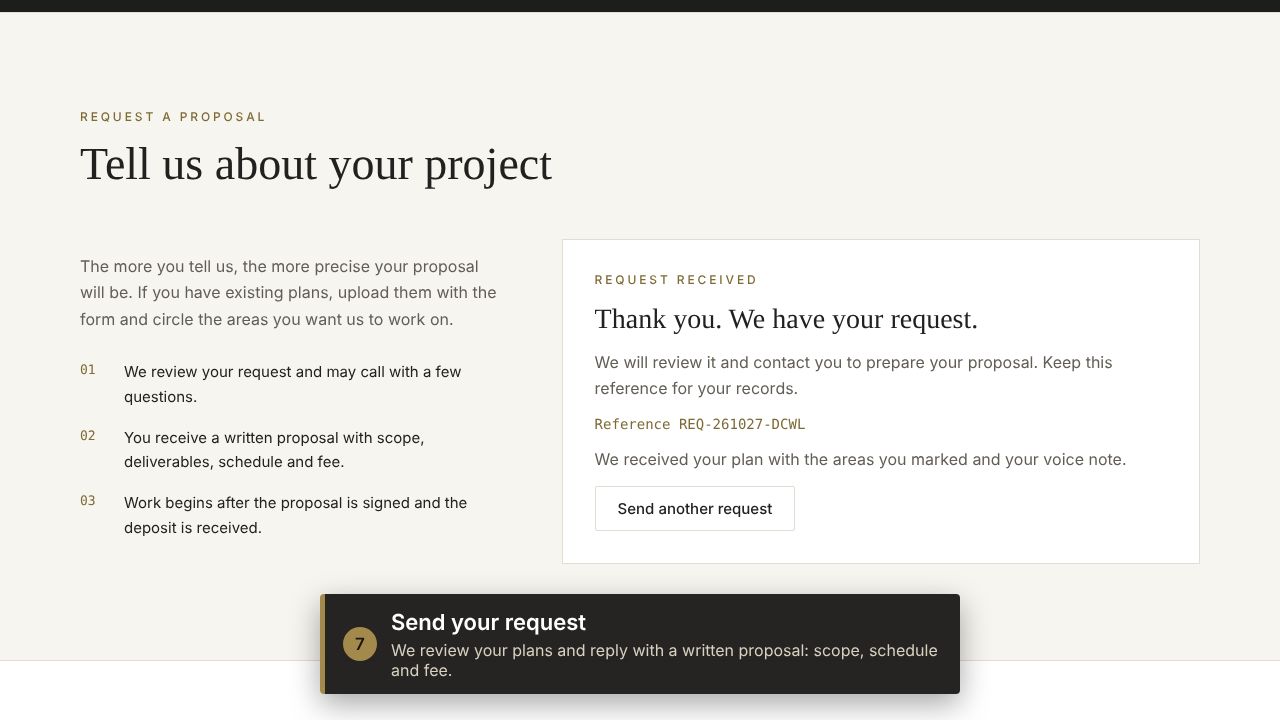
We review your plans and reply with a written proposal: scope, schedule and fee.
Request a proposal Questions? Call 718-500-3677
Review drawings and leave comments
This video could not play here (it may be blocked by your internet filter). Follow the pictures below instead.
Video · 1:12 · no sound, captions on screen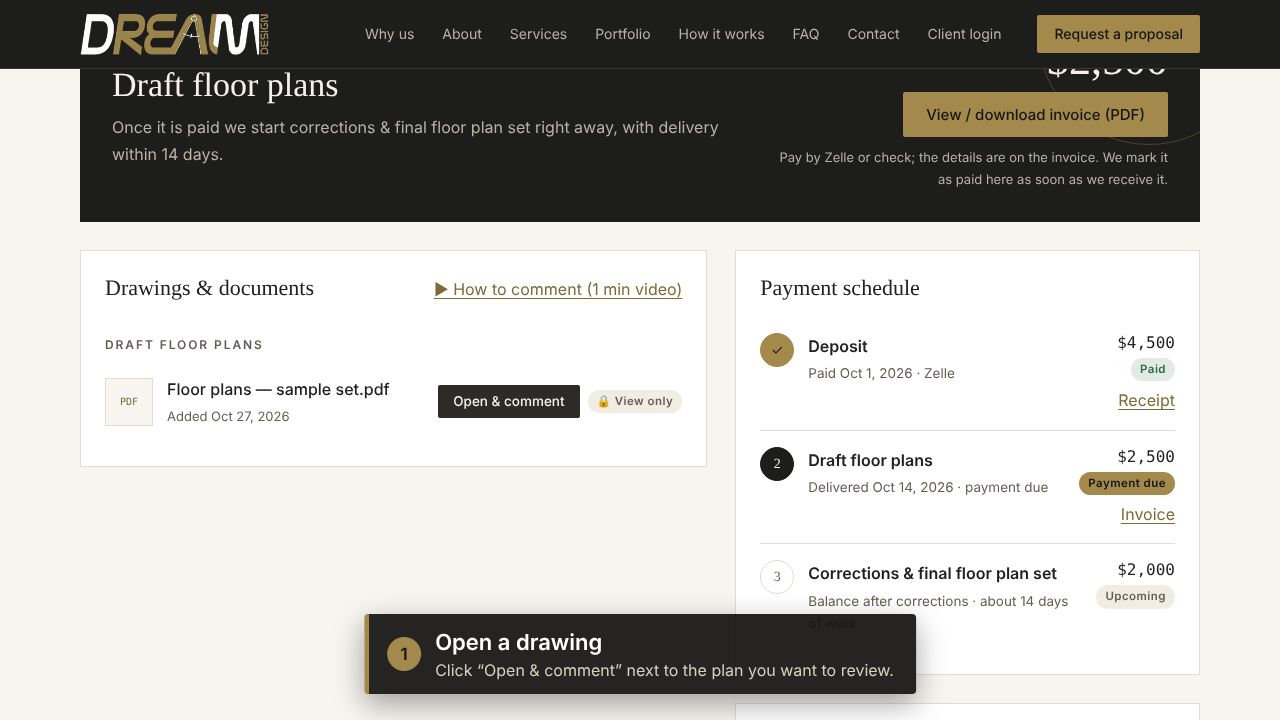 1
1Open a drawing
Sign in to your client portal and click “Open & comment” next to the drawing you want to review.
 2
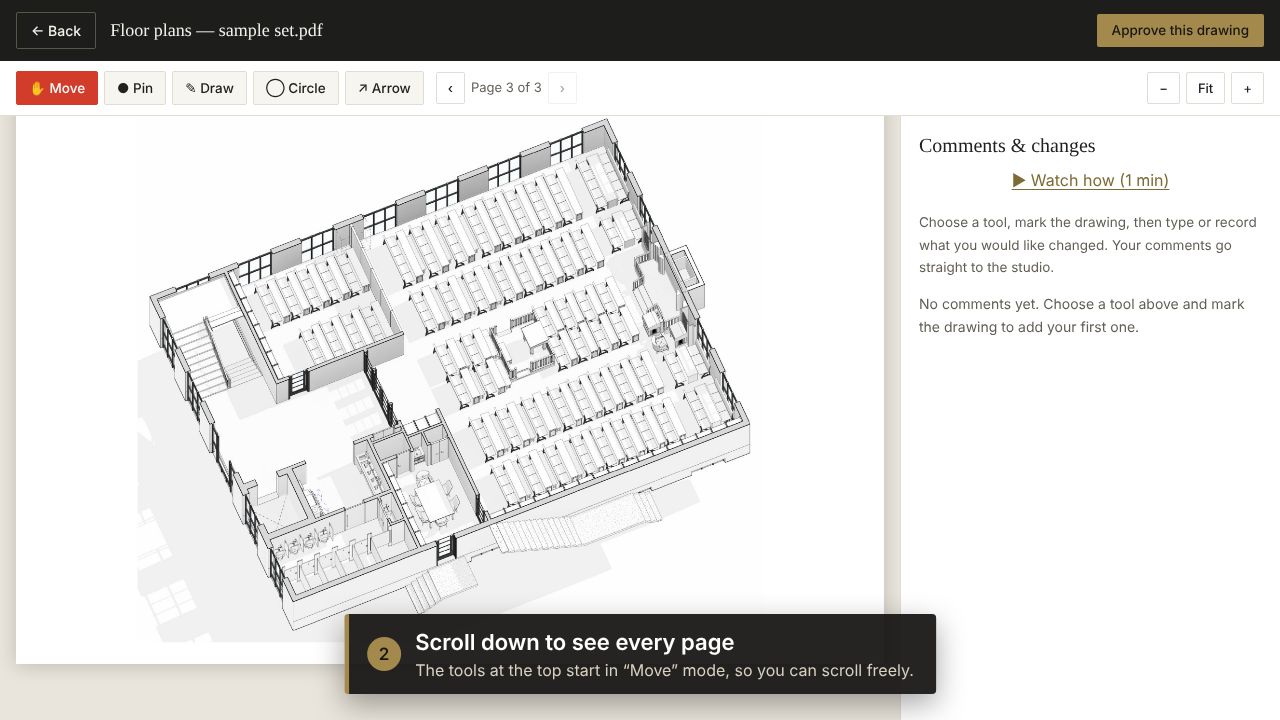
2Scroll down to see every page
Multi-page sets show all pages one under the other. The tools start in “Move” mode, so you can scroll freely.
 3
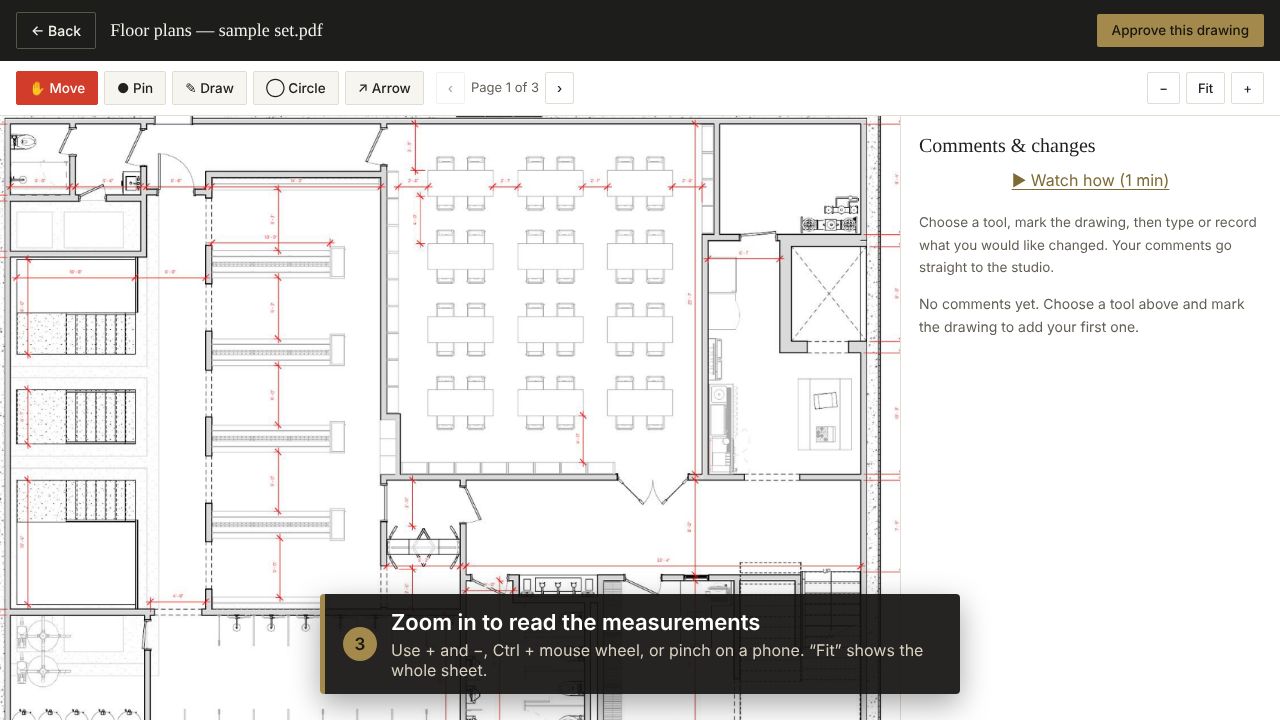
3Zoom in to read the measurements
Use + and −, Ctrl + mouse wheel, or pinch on a phone. “Fit” shows the whole sheet again.
 4
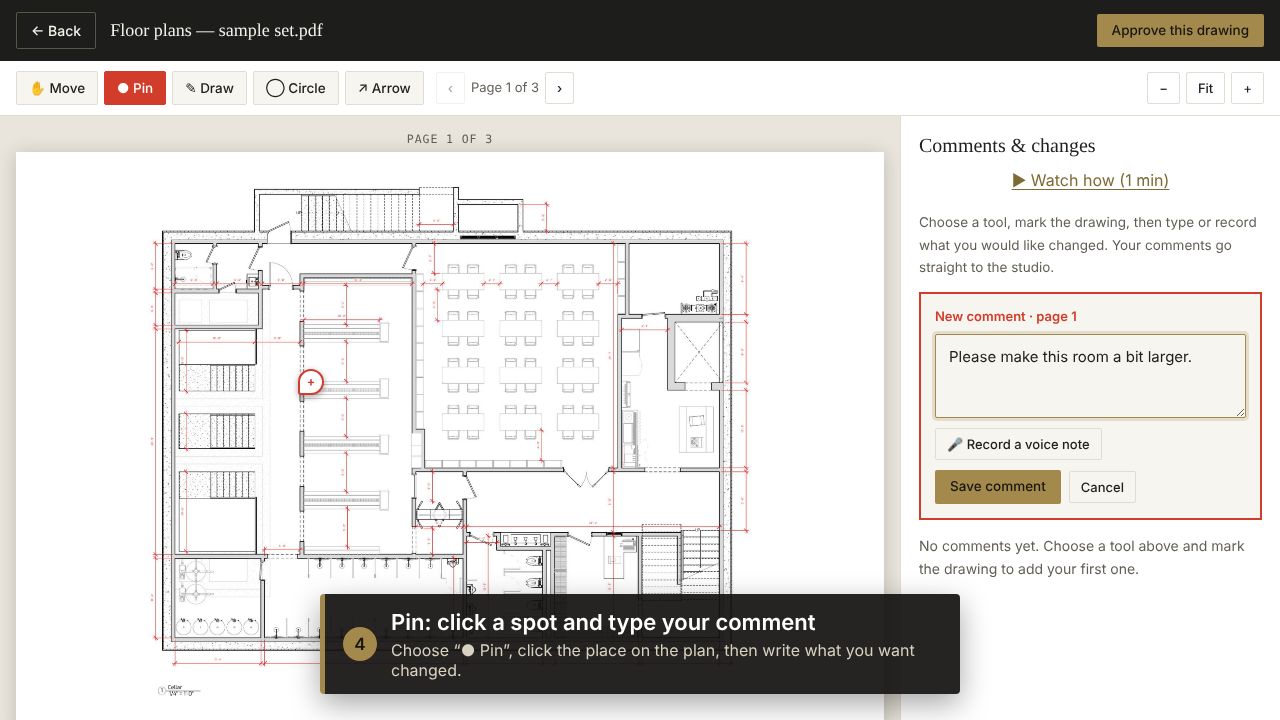
4Pin: click a spot and type your comment
Choose “● Pin”, click the place on the plan, write what you would like changed, then click Save comment.
 5
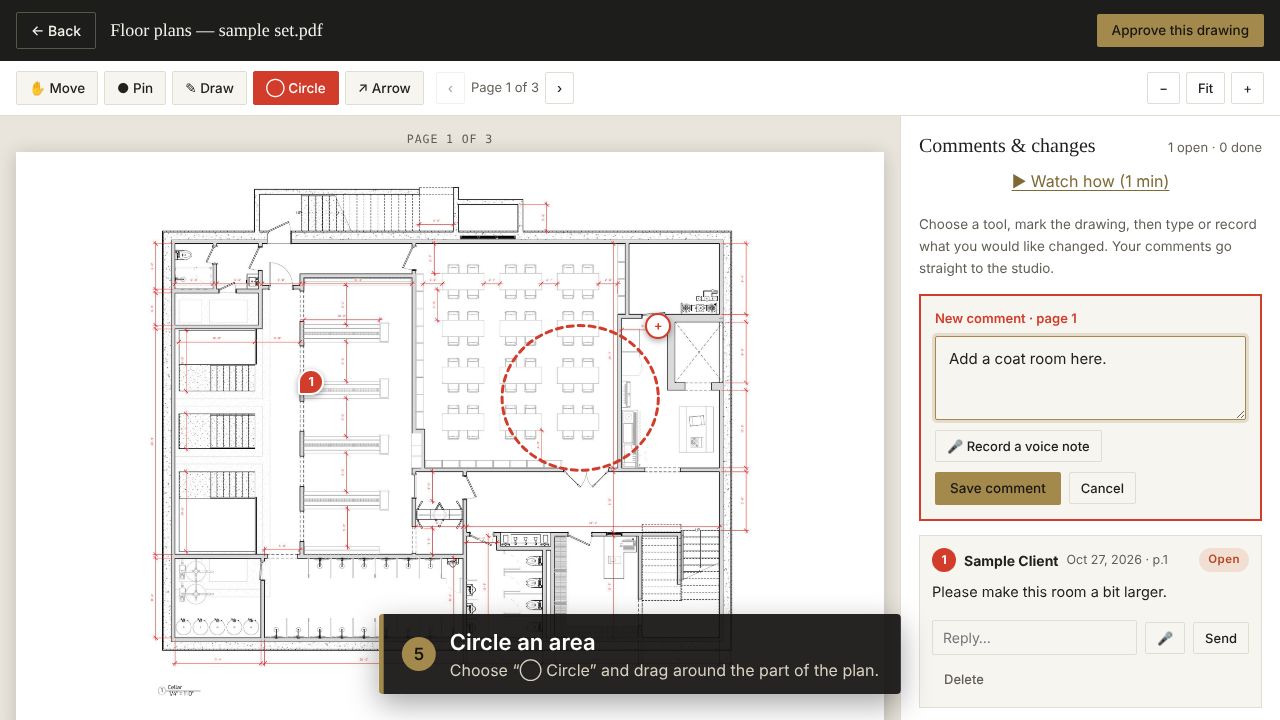
5Circle an area
Choose “◯ Circle” and drag around the part of the plan, then type your comment and save.
 6
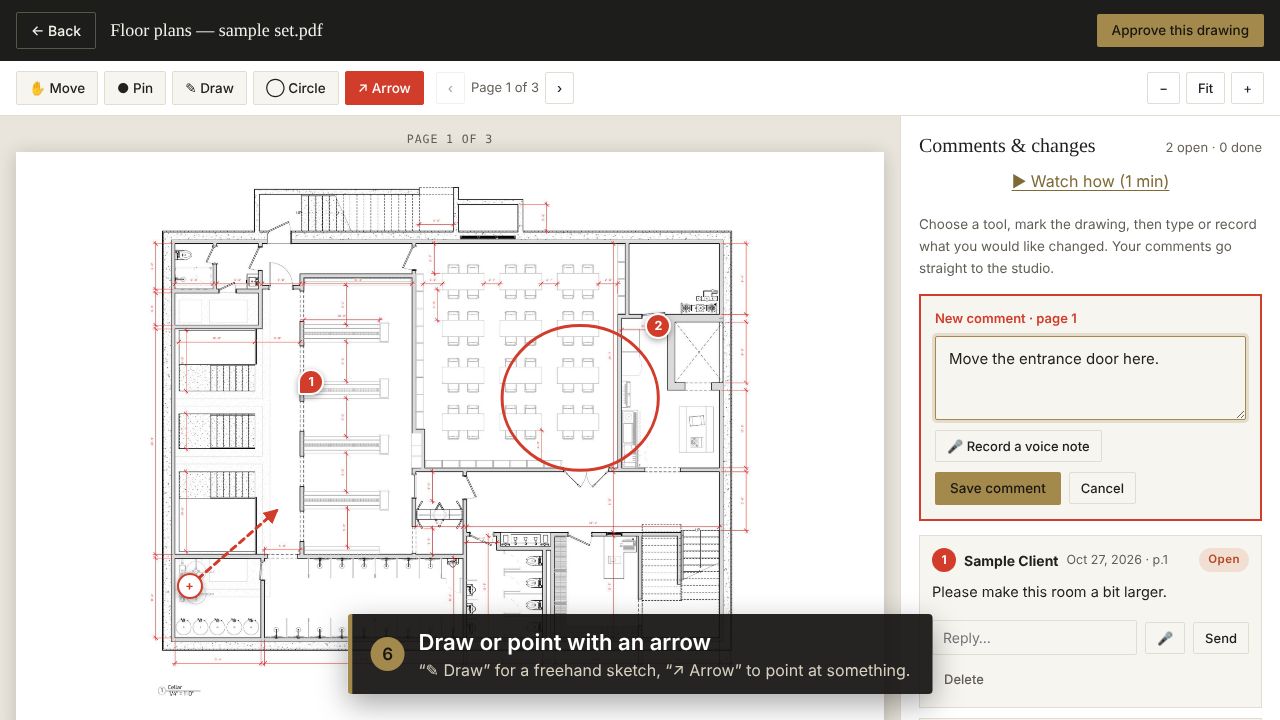
6Draw or point with an arrow
“✎ Draw” for a freehand sketch, “↗ Arrow” to point at something. Add your comment and save.
 7
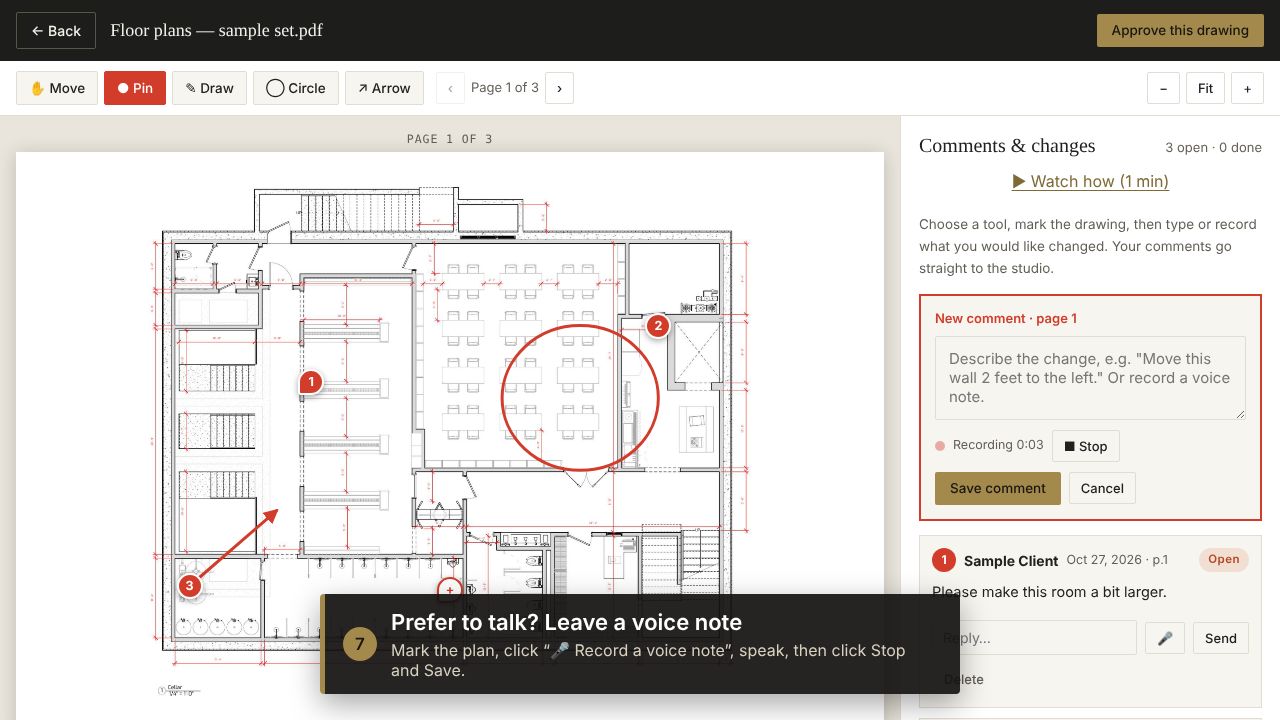
7Prefer to talk? Leave a voice note
Mark the plan, click “🎤 Record a voice note”, speak, click Stop, then Save comment.
 8
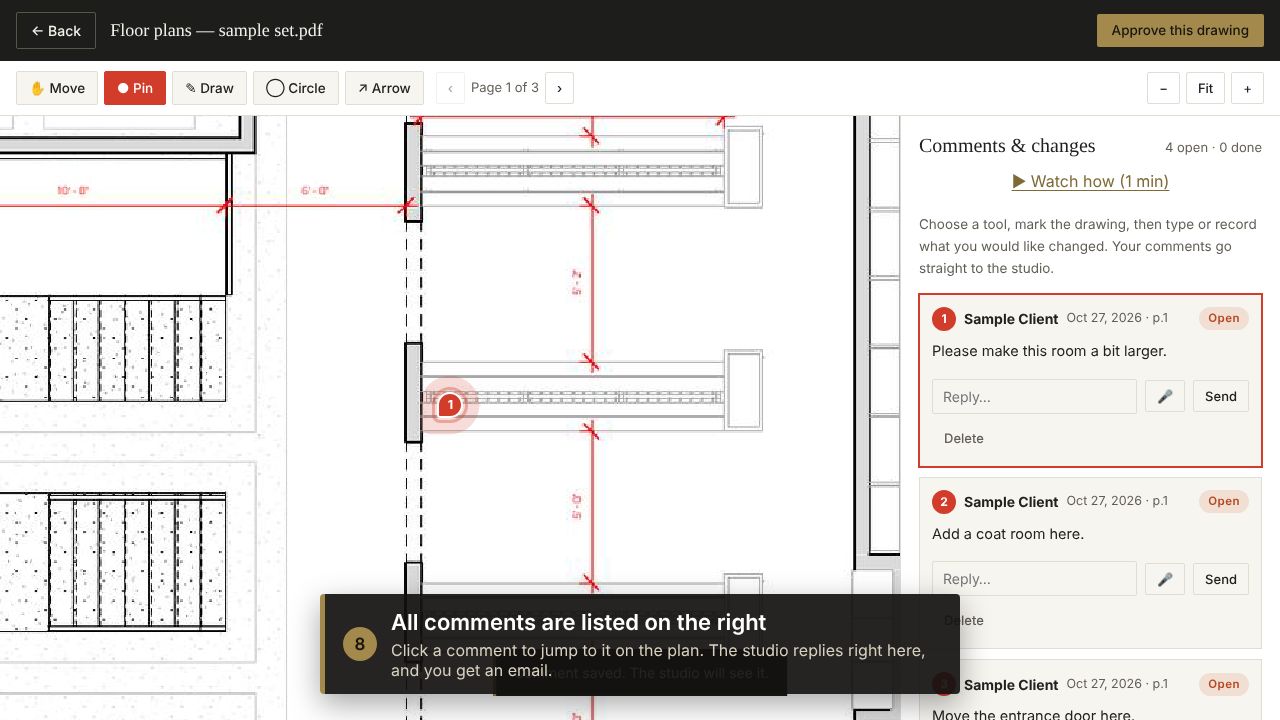
8All comments are listed on the right
Click a comment to jump to it on the plan. The studio replies right there, and you get an email.
 9
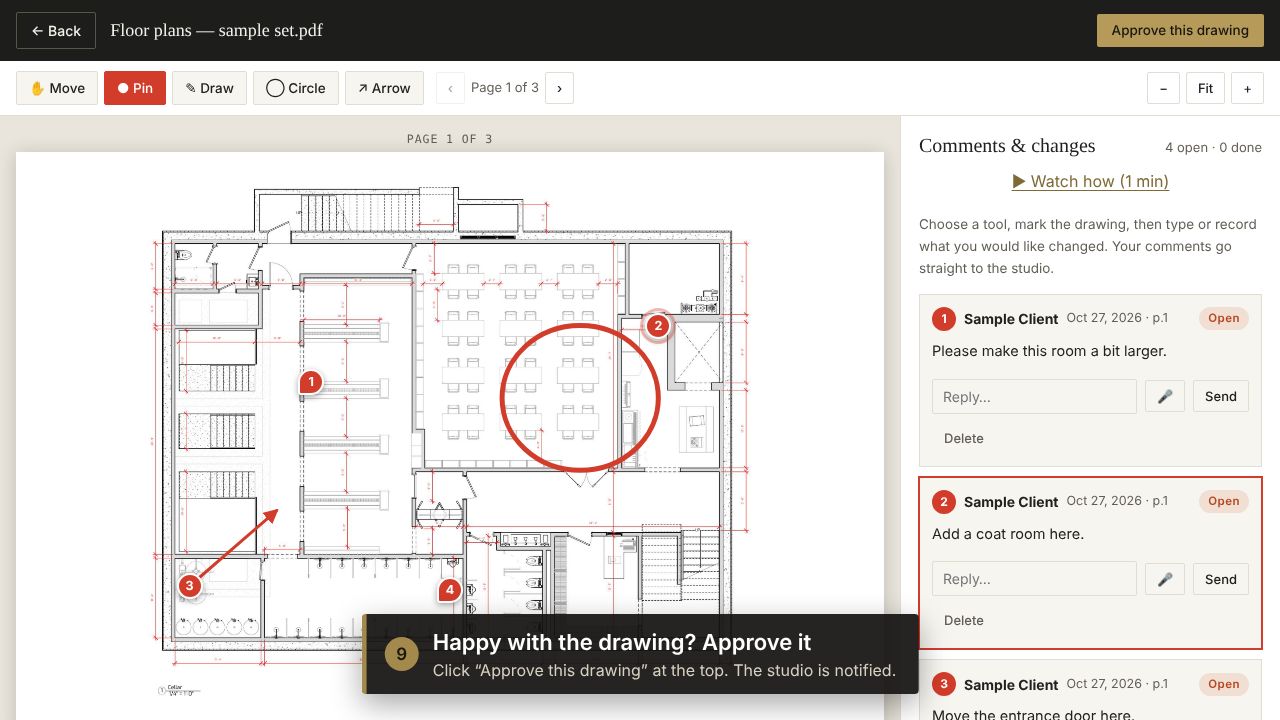
9Happy with the drawing? Approve it
Click “Approve this drawing” at the top. The studio is notified.
Open your client portal Questions? Call 718-500-3677